
A QR code can send people to different websites by country when its encoded link is managed by a service with country-routing rules. In GeoQR, you choose one default destination, add country-specific addresses, and keep the same QR code on every printed item.
This is useful when the same packaging ships to several markets. A scanner can reach local product information, support, or an offer without choosing a country from a list first. The country is estimated from network information, so always keep a useful fallback page.
Example: one package sold in three markets
Imagine a product sold in Denmark, Germany, and other markets. The QR artwork stays identical. Its destinations could be:
| Rule | Destination |
|---|---|
| Denmark | Danish product information |
| Germany | German product information |
| Default | International page with a market selector |
The default serves scans with no matching country rule, including those whose country cannot be identified. A market selector on your website also gives visitors a way to choose a different page if the automatic choice is unsuitable.
Set up country redirects in GeoQR
- Create a dynamic QR code or open an existing one. Use the existing code if its artwork is already printed.
- Open Destinations and set the default to a page that works for visitors from any market.
- Add a country destination for each market that needs a different page. Select the country and enter its destination address.
- Review any existing device or combined rules. They may take precedence over a country-only destination.
- Save the changes, review the live-update confirmation when editing an existing code, and check the saved destinations.
- Test the published code for your important markets and confirm that unmatched scans have a useful default destination.
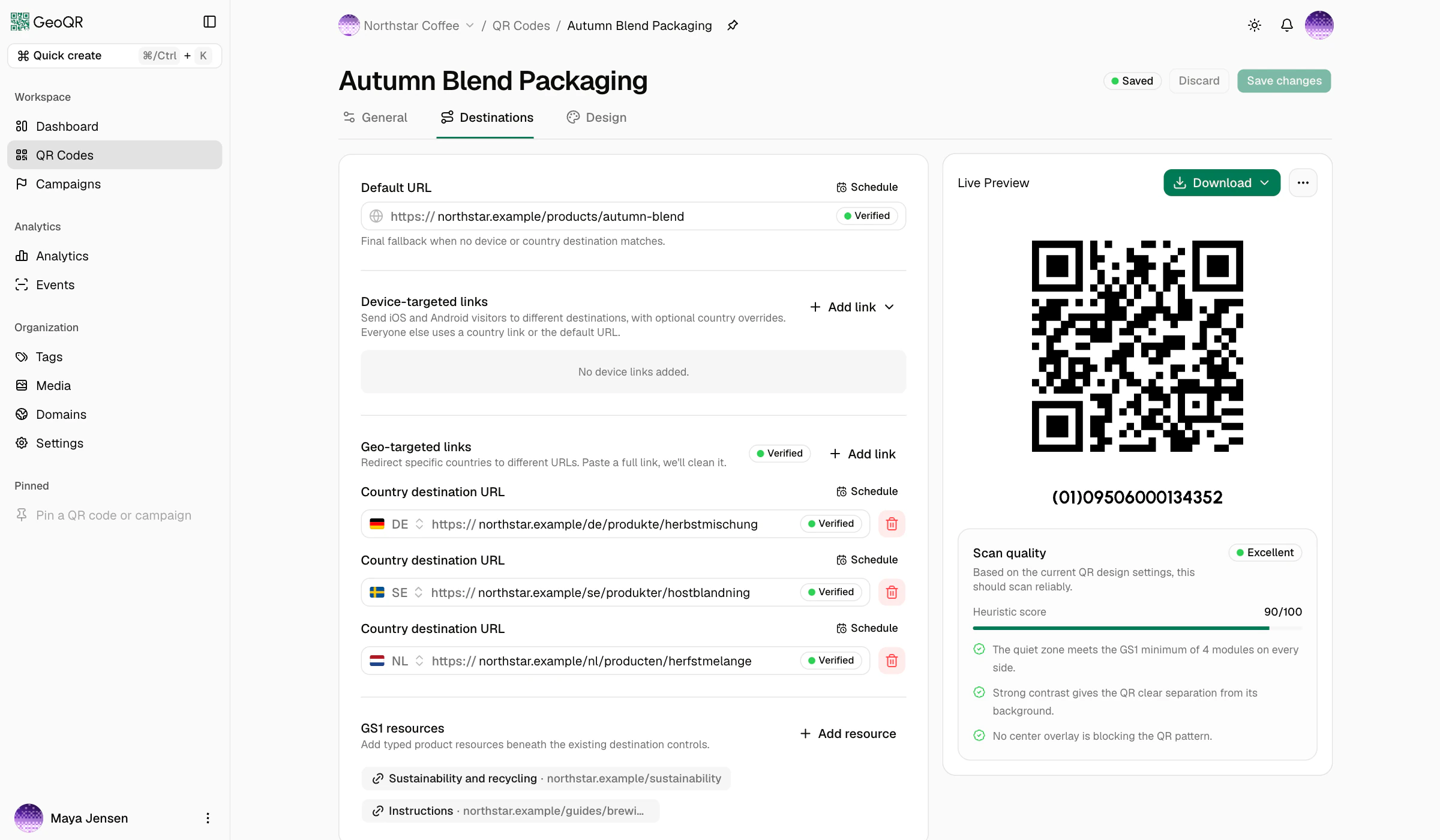
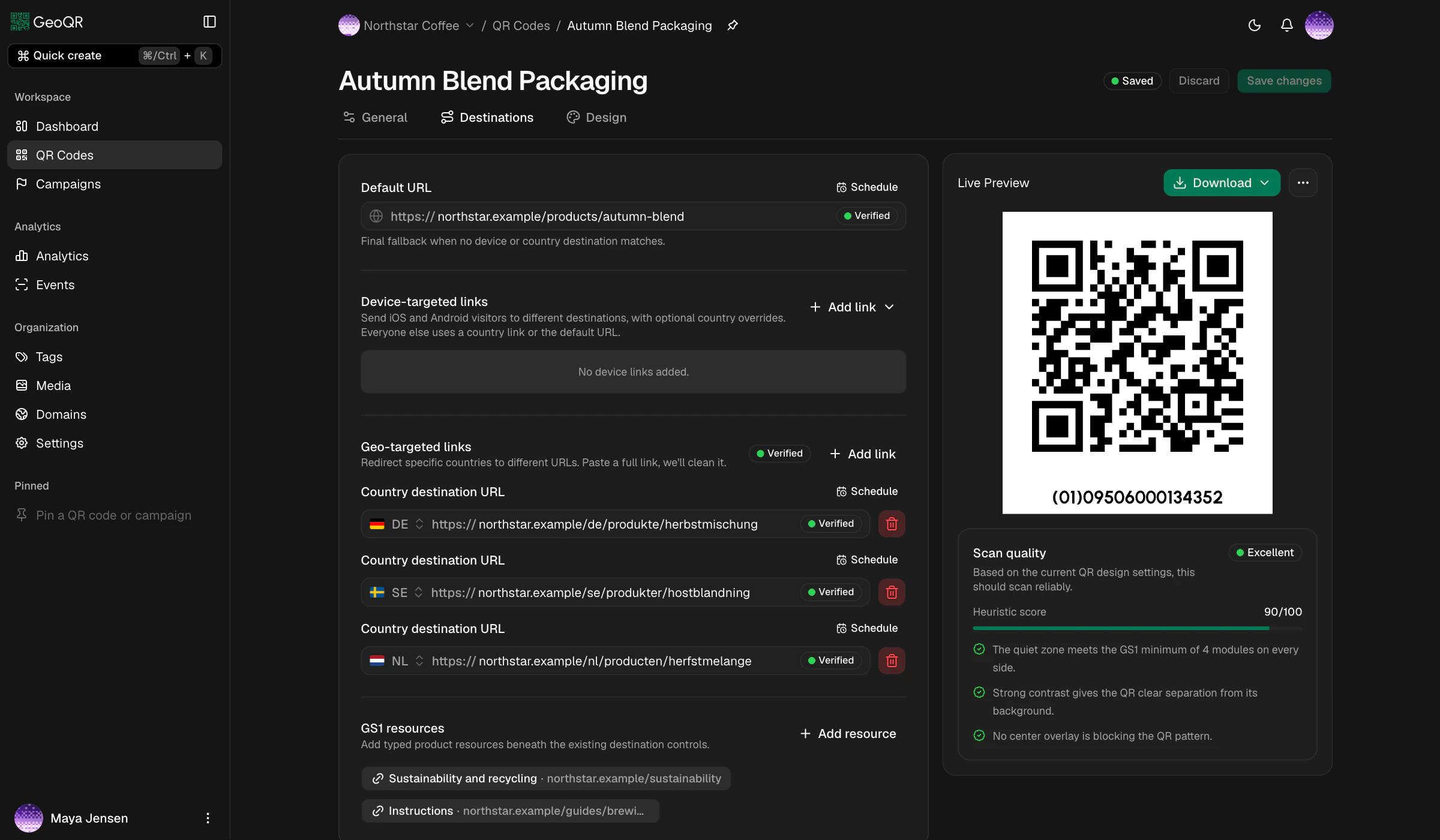
For the supported settings, see GeoQR's destination-rule documentation. You can update these destinations after launch without printing new artwork; follow the guide to changing a QR code link after printing.
What happens when device and country rules both match?
GeoQR checks destinations in this order:
- Combined device and country rule.
- Device rule for iOS or Android.
- Country rule.
- Default destination.
An iPhone in Denmark uses the iOS-and-Denmark rule if one exists. Otherwise, it tries the iOS destination before the Denmark destination. Keep that priority in mind if you want local content to differ between app stores or devices.
Country routing is not GPS or language detection
GeoQR uses approximate country-level network information without asking for precise GPS permission. VPNs, mobile carriers, proxies, and company networks can affect the country a request appears to come from. Country also does not tell you which language a visitor prefers.
Test the routing before distributing the code
Ask colleagues in the target markets to scan the same published code. Record which device and network they used, then compare the resolved destinations in QR scan analytics. A VPN can help investigate behavior, but it is not a substitute for checks on the networks your audience uses.
If you add a temporary offer, test before, during, and after its scheduled window as well. For more examples, explore QR codes for packaging and the routing feature overview.