Keep every placement for a campaign together
Bring the posters, table cards, packaging, signs, and other placements for one initiative into a single campaign. Open the campaign to see its planning details and assigned QR codes together.
Campaign management / Shared UTM defaults / Campaign analytics
Group the QR codes behind a launch, event, promotion, or rollout. Reuse tracking defaults across placements, review campaign results, and archive finished work without changing what live QR codes do.
One workspace for the initiative
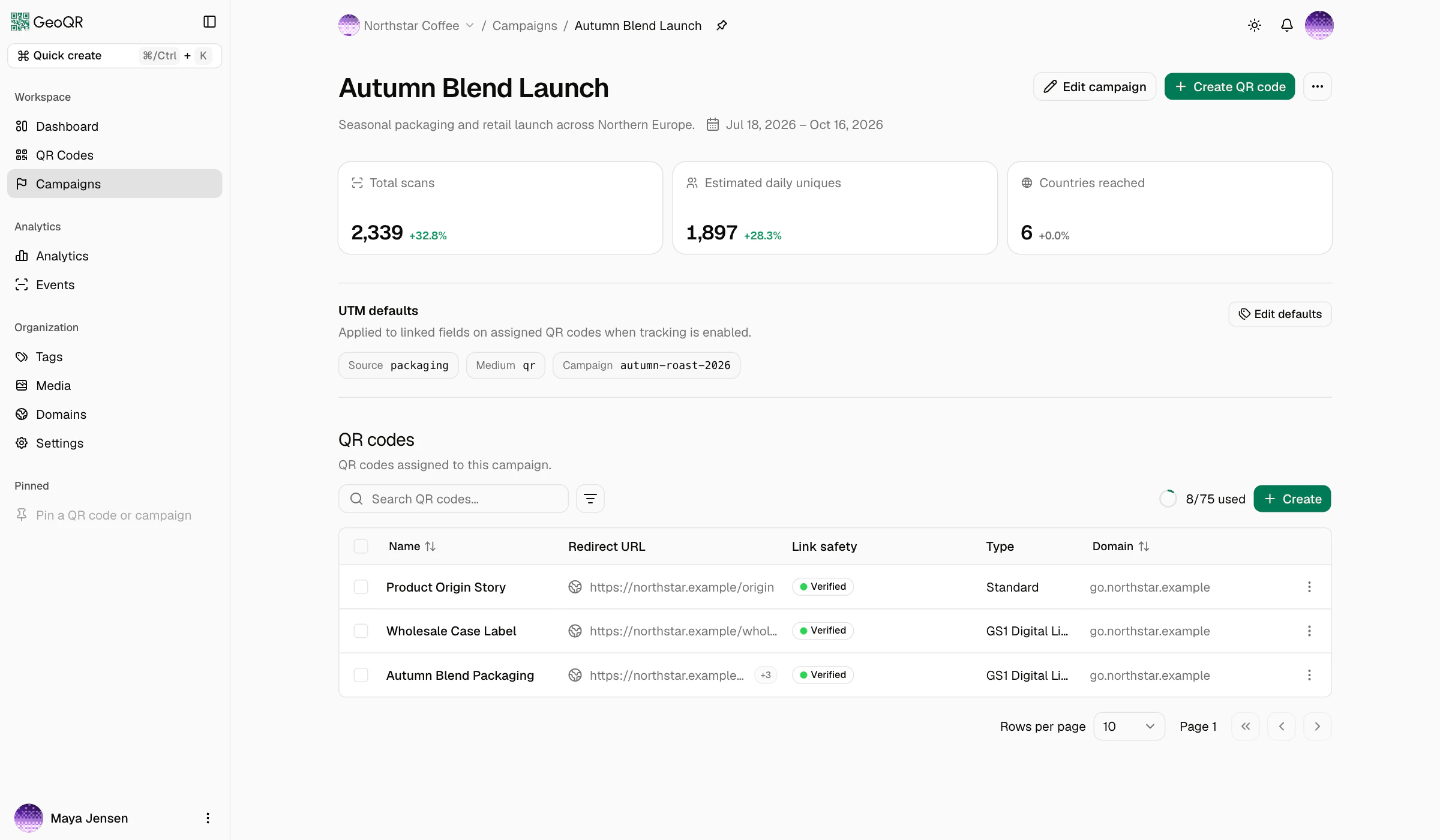
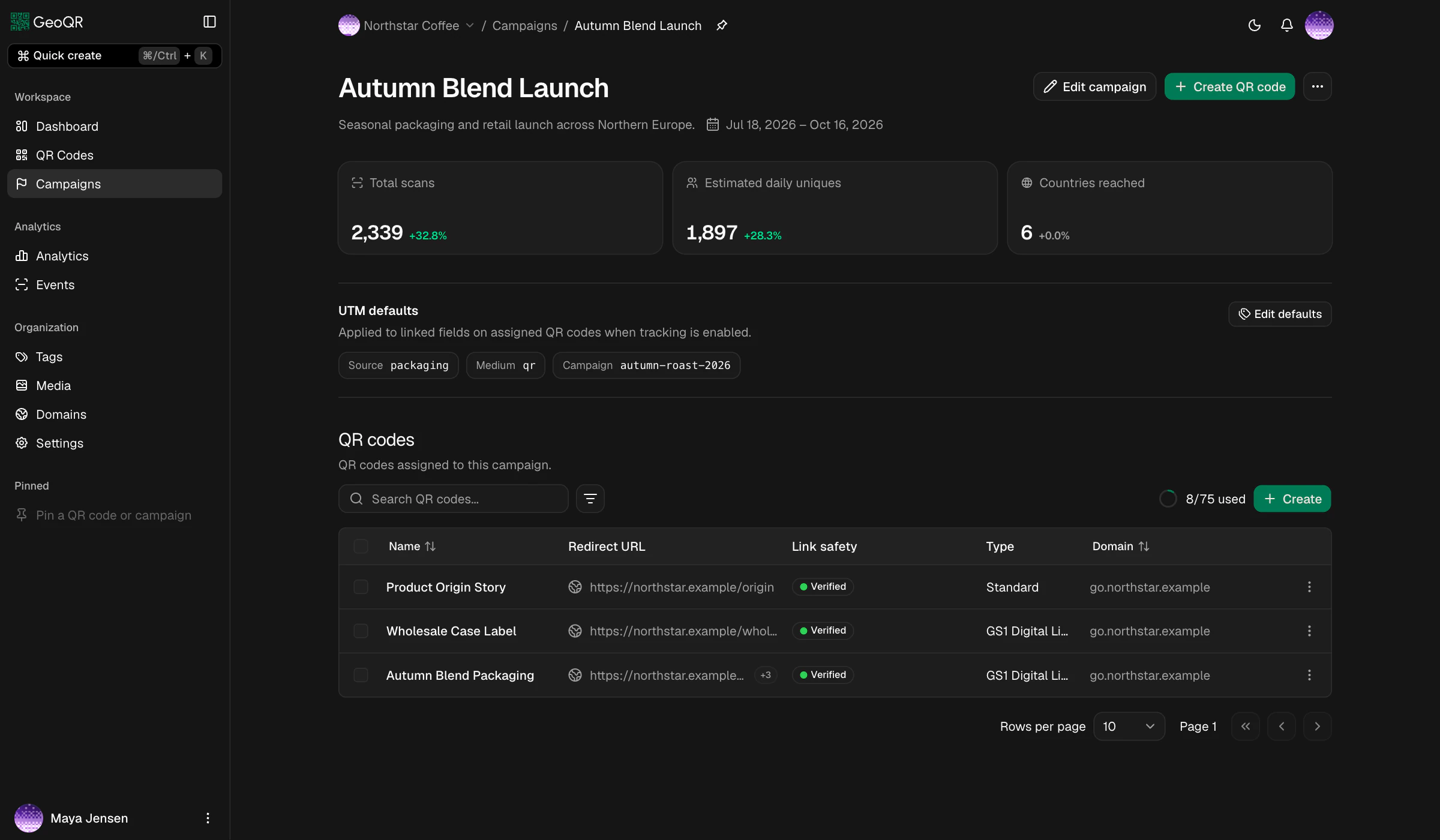
Campaigns keep related codes, tracking defaults, and results together. The QR codes keep their own publishing state, destinations, routing rules, and design.
Bring the posters, table cards, packaging, signs, and other placements for one initiative into a single campaign. Open the campaign to see its planning details and assigned QR codes together.
Set shared source, medium, campaign, content, and term values once. Assigned QR codes can inherit each value, replace it with a placement-specific value, or leave that field blank.
See scans, estimated daily unique scanners, and countries reached directly from the campaign. Open Analytics when you need longer date ranges, filters, or deeper comparisons.
Assign an existing published QR code to a new campaign without replacing the code already in circulation. Future scans are associated with the new campaign, while earlier analytics remain with the campaign active at the time.
Add optional start and end dates to communicate the planned campaign window to your team.
Create a QR code from inside a campaign or assign the campaign while creating and editing a code.
Use campaign filters in the QR list, Analytics, and Events to focus on one initiative.
Pin an active campaign in the app sidebar when the team needs to return to it frequently.
How campaign management works
Campaigns connect the team’s planning context with the QR codes, tracking labels, and analytics that belong to the initiative.
Read the campaign management guideCreate a campaign with a recognizable name, optional description, and planning dates that help the team understand the initiative.
Assign existing QR codes or create new ones from the campaign page so every relevant placement is easy to find.
Configure shared UTM defaults. Assigning a campaign enables UTM tracking for its QR codes; review inherited values and choose any QR-level overrides.
Review the campaign summary during the rollout, then archive the campaign when the initiative is finished.
Questions
The practical details behind campaign planning, QR assignment, shared UTM defaults, historical reporting, archiving, and tags.
A campaign groups QR codes that belong to the same launch, event, store, promotion, or other initiative. It gives the group one place for planning details, shared tracking defaults, assigned QR codes, and a campaign analytics summary.
No. Campaign planning dates are organizational information for your team. They do not automatically publish, pause, unpublish, or schedule any QR code or destination.
Yes. Assigning a campaign automatically enables UTM tracking for the QR code. GeoQR uses the campaign's UTM defaults for inherited fields, and you can review or override individual values on the QR code.
Yes. Each UTM field can keep using the campaign value, use a different value for that QR code, or be left blank. This lets a campaign share common labels while individual placements keep the detail they need.
Changing a QR code's campaign assignment affects future scans. Earlier scan records remain associated with the campaign that applied when those scans happened, so historical reporting is not rewritten.
Archiving removes the campaign from the active list. Its QR codes keep their publishing state, destinations, and redirect behavior. The campaign remains available in historical analytics and can be restored later.
Use campaigns for specific initiatives with their own QR group, tracking defaults, and results. Use tags for reusable labels such as region, channel, store, team, or lifecycle that can apply across multiple campaigns.
Start with one campaign
Create a campaign, add the QR codes for each placement, configure shared tracking defaults, and follow the rollout from one workspace.
Free plan · No credit card required