

To track QR code scans, use a managed QR link that records requests before redirecting visitors. GeoQR's analytics lets you review scan totals, estimated daily unique scanners, trends, and destinations. Use separate codes for separate placements so you can compare them later.
Tracking a scan answers how a visitor reached a destination. To understand what they did on your website, add campaign labels to the destination link and use analytics on that website. These are related measurements, but their totals need not match.
1. Create a separate QR code for each placement
Imagine promoting the same product on a shop-window poster and an in-store package. Create one code for the poster and another for the package, even if both open the same product page. Give them clear internal names such as “Autumn launch — window” and “Autumn launch — package.”
If you reuse one code everywhere, its scans are combined. The report cannot infer which physical copy someone scanned from the shared link alone. Separate codes give you a dependable placement dimension.
2. Group the codes in a campaign
Assign related QR codes to one campaign so you can review their combined activity and compare individual codes. GeoQR's campaign management also provides shared UTM defaults for destination links.
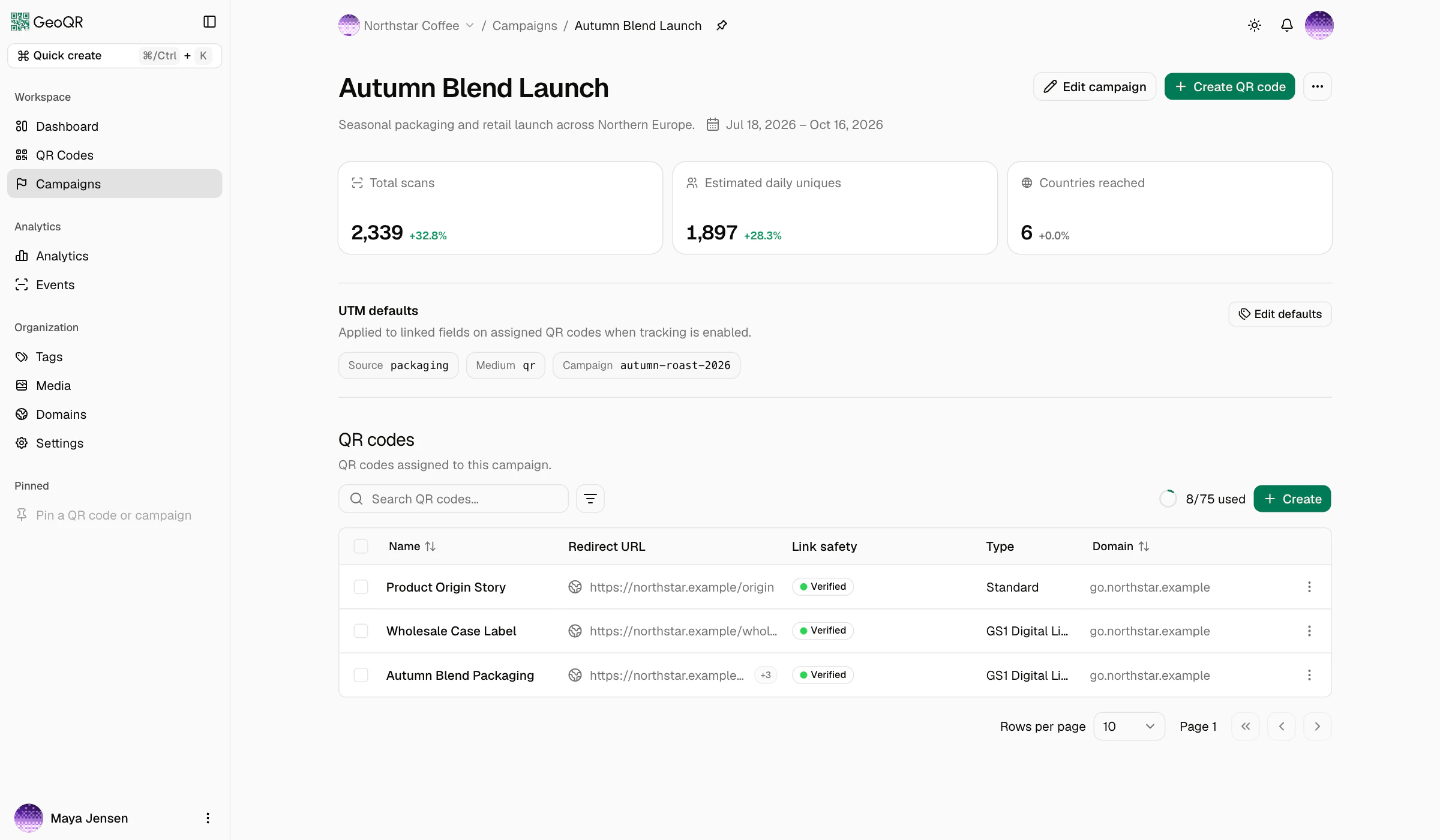
Decide your naming convention before the print run. Keep the campaign name consistent and use a placement-specific value to distinguish the poster from the package. Avoid changing the meaning of those labels halfway through a campaign.
3. Review UTM tracking for the destination website
UTM parameters are labels added to a destination URL. For this example, you might use utm_source=qr, utm_medium=print, and utm_campaign=autumn_launch. Use utm_content=window_poster for one placement and utm_content=product_package for the other. These are example labels, not required values or a promised analytics channel grouping.
In each QR code's General tab, review its campaign assignment and UTM tracking settings. Keep the campaign-linked values where appropriate and override the placement field for that code. Save changes and scan the published code to confirm the final address has the intended labels.
UTM labels do not install analytics on your website. Your destination needs its own measurement setup to report visits and purchases, and any later redirects need to preserve the labels you depend on. The destination and tracking documentation explains how GeoQR applies tracking after choosing a destination.
4. Compare scans over the same period
- Open Analytics and choose the period you want to review.
- Filter to your campaign so unrelated codes do not affect the view.
- Review Total scans and Estimated daily unique scanners, then compare the individual QR codes in the breakdowns.
- Use country, device, or destination filters to investigate a more specific question.
- Open Events when you need the context behind an individual scan, including its resolved destination and routing outcome.
GeoQR uses UTC day boundaries. Compare like-for-like periods, and check the timezone used by any website analytics report before comparing daily totals. Available history and the scans shown also depend on your plan; the analytics documentation explains those limits.
5. Interpret the numbers before changing the campaign
Total scans excludes recognized automated traffic, but a scan still is not proof of a distinct person or a purchase. Estimated daily unique scanners resets each day and can be affected by shared devices, privacy tools, and network changes. Do not describe it as an exact count of customers.
A poster with more scans may simply have more exposure. Before calling it the better placement, consider how long each code was displayed, how many people could see it, and whether its destination helped them complete the intended action. Use scan trends to decide what to investigate, then check website outcomes separately.
Can you track a static QR code?
A static QR code can contain a URL with UTM labels, and the destination website can measure visits. It can also point to a redirect you manage separately. What it does not provide by itself is a QR management dashboard or editable destination. See the static and dynamic QR code comparison for the distinction.
When a campaign changes, you can update a managed QR destination after printing and keep measuring future scans. For the available reports, explore GeoQR's QR code analytics.